app store badge google play badge

Get the mobile app for the best Kahoot! experience!

Canva integration with Kahoot!

Transform Canva presentations into interactive lessons and study sessions with Kahoot!

Educators, students, and other presenters can now save time and create active learning experiences with Kahoot!’s Canva integration. Combine Canva’s powerful presentation design tools with the interactive, engaging experience of Kahoot!

Available to all Kahoot! users, including those with a free Kahoot! Go account.

Start for free

Video

New! Design in Canva and engage with Kahoot!

Millions of educators, students, and presenters already use Canva and Kahoot! together: Canva to design stunning slides, Kahoot! to bring them to life. This integration makes going from design to delivery seamless, with no switching between platforms needed. Bring your Canva lessons, study materials, and class presentations into Kahoot! in just a few clicks, add interactive questions between slides, and host them live in engaging game experiences where everyone takes part.

2611_🔴 Canva integration - Educators & Students_Card 1_V1

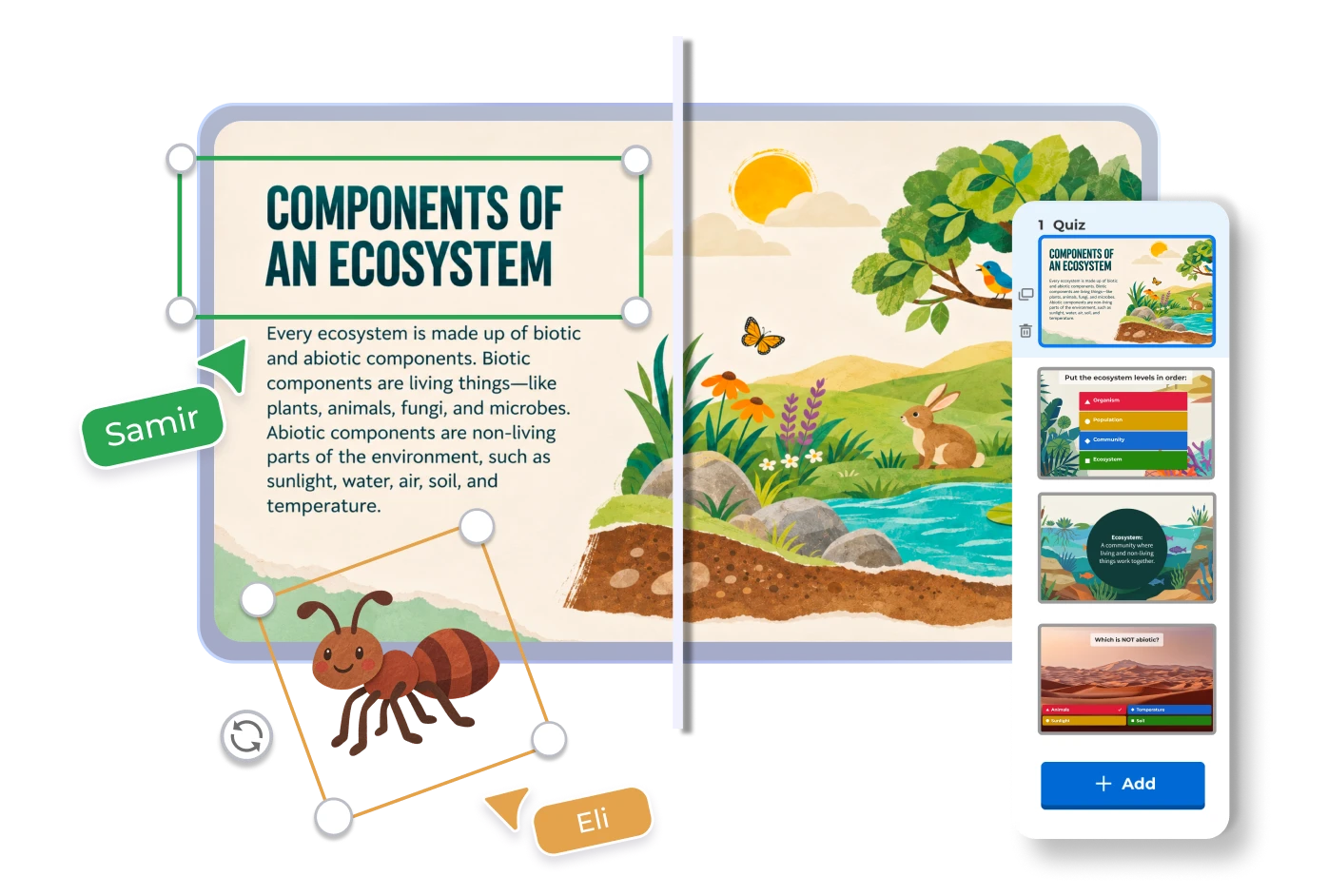
Bring your Canva slides seamlessly into Kahoot!

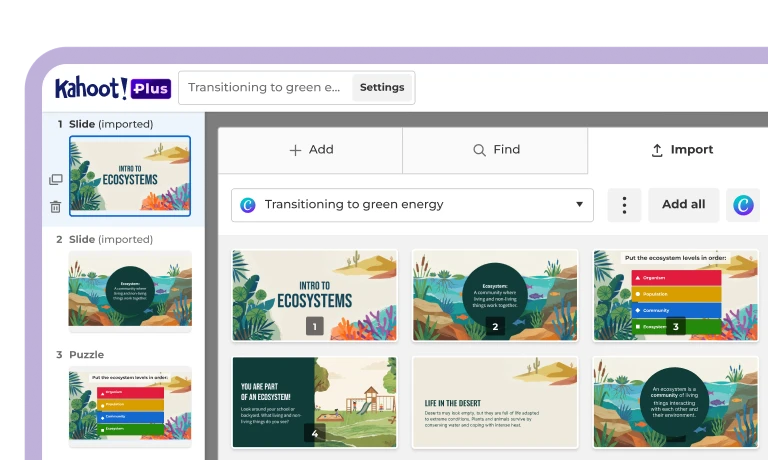
Instantly add the slides you create in Canva to your kahoot. Sync them to keep your kahoot up to date with any changes to your Canva presentation. No manual updates, exporting, or rebuilding required.

2611_🔴 Canva integration - Educators & Students_Card 2_V1

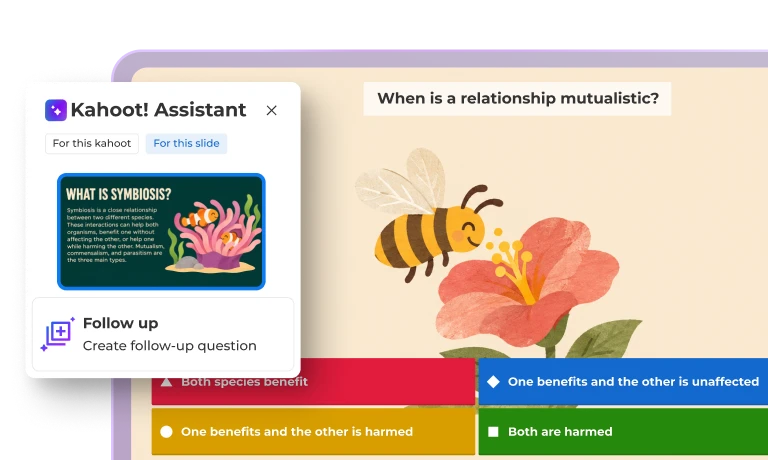
Add interactive question types in seconds

With the Kahoot! Assistant, you can use AI to instantly add quizzes, polls, word clouds, puzzles, and open-ended questions between your Canva slides. Save valuable time when preparing for an engaging session.

2611_🔴 Canva integration - Educators & Students_Card 3_V1

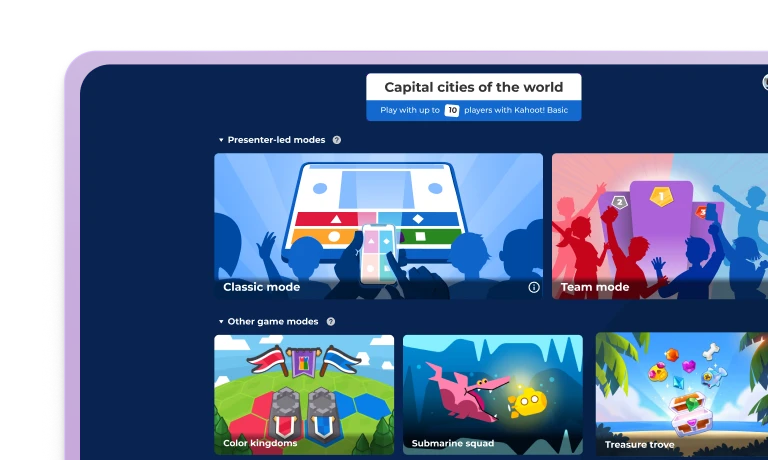
Host your presentation live with engaging experiences

Host your presentation live in engaging game experiences, and use your questions for quick pulse checks, formative assessment, and real-time feedback on everyone’s understanding throughout the session.

GET STARTED

How to import and sync your Canva slides on Kahoot!

Getting started is easy, and you won’t need to export or rebuild anything.
Follow these simple steps to bring your Canva slides into Kahoot! and keep them in sync as you edit.

Import and sync your Canva slides in 5 easy steps:


1Log in to your Kahoot! account and click Create to start a new kahoot.
2Click Import slides to upload or sync your slides.
3Upload your Canva presentation file, or click Sync with Canva.
4Connect your Canva account from the Kahoot! creator and select the presentation you want to import.
5Select the slides to add. Edit your Canva presentation anytime, and sync it in Kahoot! with just one click.
Kahoot!

DISCOVER MORE

Everything you need for lessons, study sessions, and
class presentations with Kahoot!+

icon

Integrations

Connect Kahoot! with Canva and other tools you already use.

icon (1)

Kahoot! Assistant

Create kahoots in seconds with the Kahoot! Assistant, powered by AI.

icon (6)

More question types

Add puzzles, polls, word clouds, open-ended, brainstorm questions, and more.

icon (1)

Game experiences

Access all live game experiences, from Classic to Team, or Lecture mode.

icon (4)

Template library

Use ready-made templates for lessons, study sessions, and more.

icon (7)

Web and mobile

Works in any browser and on the Kahoot! app, on any device.

icon (2)

Self-paced learning

Assign your kahoots as challenges to play in class, at home or on the go.

icon (5)

Reports

Track progress and spot learning gaps with detailed reports.

icon (8)

Kahootopia!

Play together in Kahootopia!, a game experience for the whole group.

Which Kahoot! plans include the Canva integration?

The Canva integration is free to try for all Kahoot! users, including those with a free Kahoot! Go account. Upgrade to Kahoot!+ to unlock more interactive question types, premium ready-made content, and engaging features.

Get Kahoot!+ from $3/mo. Save 30%. Offer ends November 27.

Frequently asked questions

How do I connect my Canva account to Kahoot!?

In the Kahoot! creator, click Create and choose Import slides, then click Sync with Canva. Sign in to Canva in the pop-up window and allow Kahoot! to access your designs. If nothing happens, check that your browser allows pop-ups for Kahoot!

Is the Canva integration free to use?

The Canva integration is free to try for all Kahoot! users, including those with a free Kahoot! Go account. Upgrade to Kahoot!+ to unlock more interactive question types and features.

Do my slides update when I edit them in Canva?

Yes. After making changes in Canva, click Update on an imported slide in your kahoot and choose to update that slide or all slides from the presentation. Tip: slides update by their position, so add, move, or delete slides in Canva before you add questions.

Can I add questions to my imported Canva slides?

Yes. Add quizzes, polls, word clouds, puzzles, and open-ended questions between your slides, or use the Kahoot! Assistant to generate questions from your slide content with AI.

Which Canva designs can I import?

You can import any design created as a Presentation in Canva, including presentations shared with you. Each slide is imported as an image, so videos, audio, GIFs, and animations won’t play. Add media directly to a kahoot slide instead.

Is my Canva account safe?

Yes. You sign in on Canva’s site, and your Canva password is never shared with Kahoot! Kahoot! only gets read-only access to your designs, so it can’t edit, delete, or share them. You can disconnect your Canva account at any time.

Which Kahoot!+ plans include more question types and features?

Kahoot!+ plans for teachers and students include more interactive question types, enhanced Kahoot! Assistant access, and reports on engagement and knowledge retention. See all plans to compare.